Mac
Your notebooks, at your desk.
The same notebooks on a bigger screen, with a sidebar, a menu bar and the shortcuts your fingers already know. The Mac app is the newest of the bunch and still getting its polish, but the basics are all here, plus a couple of things only a Mac can do.
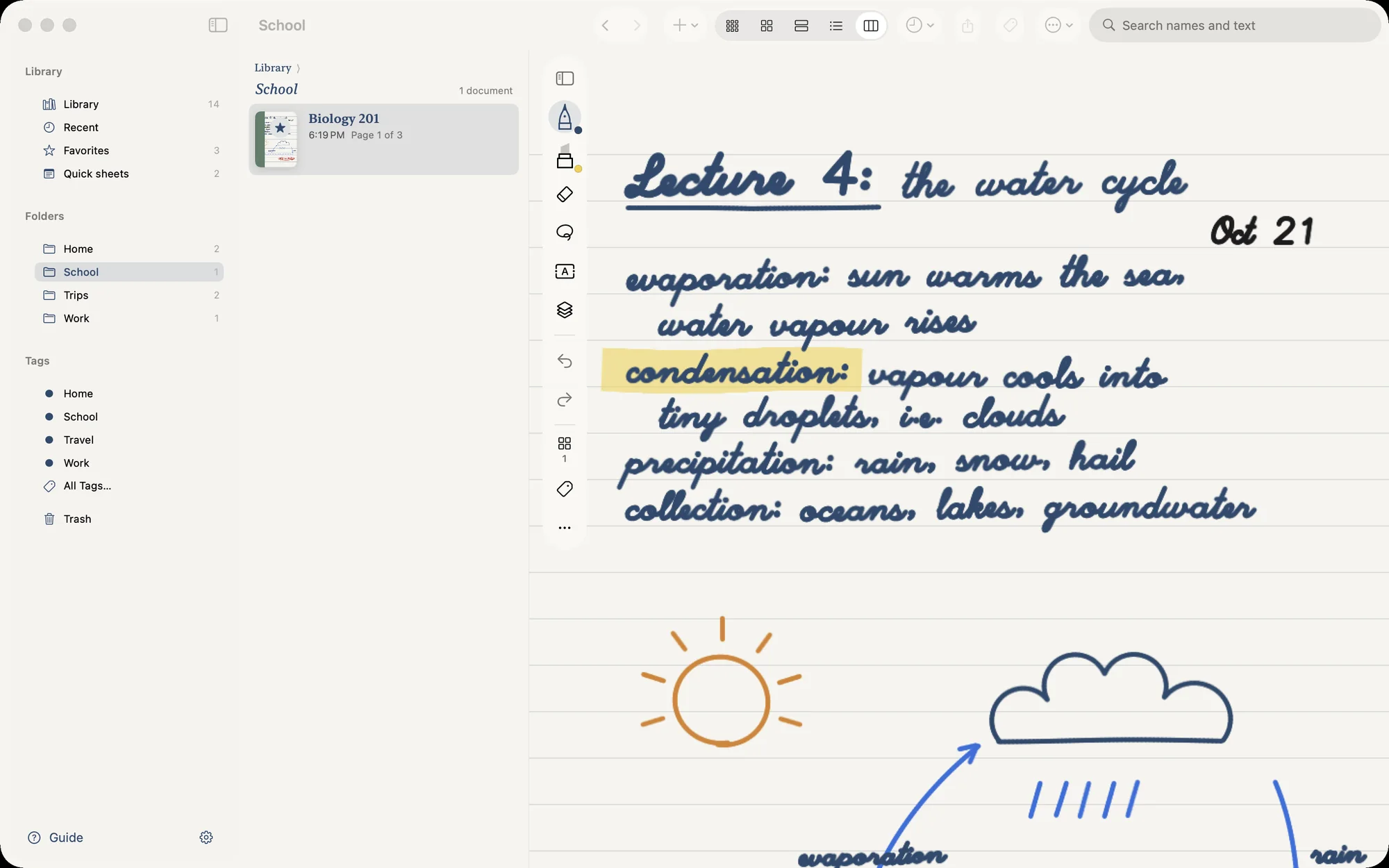
Feels at home on a Mac
- A sidebar with your folders and files, like Finder’s. Click a file and it opens right beside it.
- Open two notebooks in two windows, side by side.
- Shortcuts for the lot: ⌘1 and ⌘2 for your pens, ⌘3 eraser, ⌘4 lasso, ⌘5 text, ⌘O to open anything by name.
- Write with a tablet pen, a trackpad, or a mouse if you’re feeling brave.
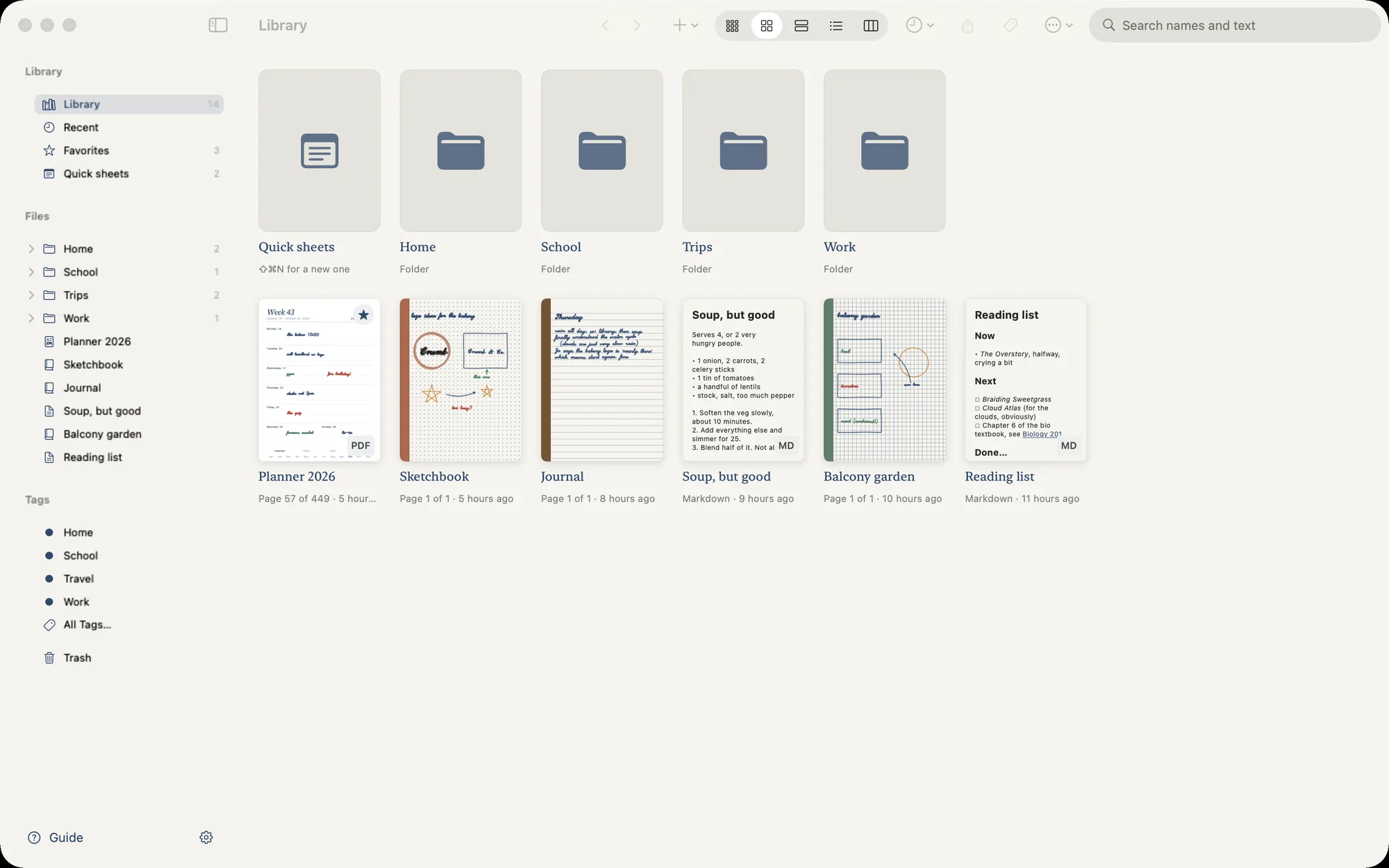
Drag PDFs in, drag them out
Drop a PDF from Finder into the Library and start scribbling. Drag a notebook out onto the desktop or into an email and it turns up as a PDF with your ink on it.
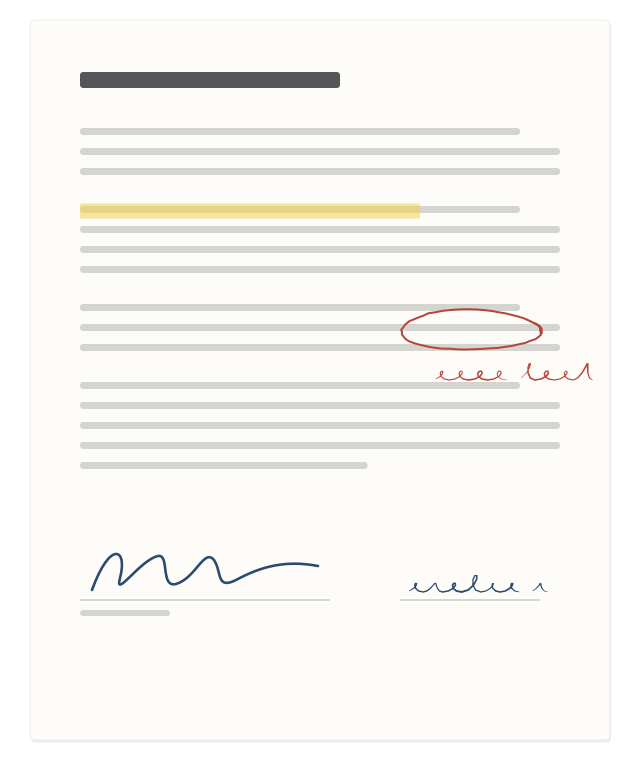
Keep a folder in step
Settings › Folder Sync pairs a folder on your Mac with your Library, or with one folder in it, both ways. Markdown files stay plain .md files and PDFs stay PDFs, so the other apps you point at that folder keep working. Change something on either side and the other catches up a couple of seconds later. Anything deleted goes to Trash, never straight into the void.
Bring your Apple Notes too
File › Import from Apple Notes reads the notes on your Mac and brings them in as Markdown files, folders and attachments included. Most sketches come over as real ink. It keeps up as you add notes, and only ever reads: Notes itself is never changed, and locked notes are left alone.
Bring your reMarkable notebooks along
File › Import from reMarkable reads the reMarkable desktop app’s copy of your notebooks and brings them in as real ink you can keep editing, typed text and all. Each time you come back to Penna it picks up whatever changed on your tablet, and keeps the edits you made here.
Switching to Penna →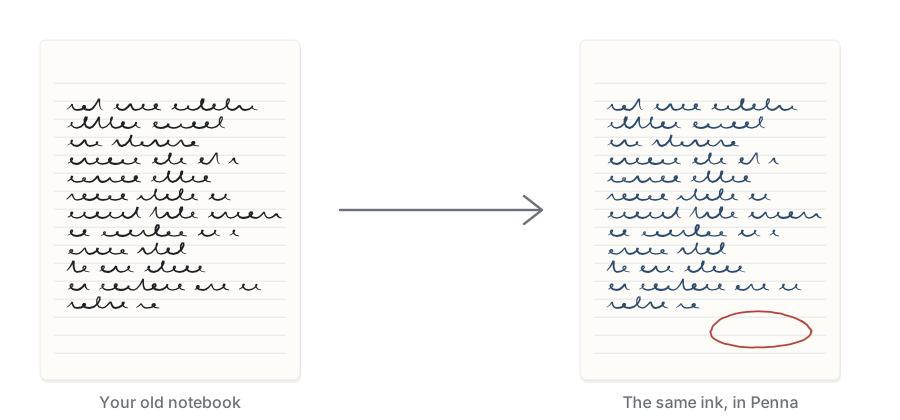
Write it down. Then find it again.
Penna arrives on iPad, iPhone and Mac this fall. Leave your email and we'll send you exactly one message: the day it's out.